In addition to having access to Vouchers, you must have set up the integration. You can find the setup guide below. Increase loyalty among your customers with unique vouchers. With the voucher add-on, you avoid misuse of your vouchers. Send unique vouchers to the right members and increase loyalty among your customers.
With unique vouchers, you avoid generic vouchers such as “WELCOME10” that can be shared and used by everyone – and often more than once. Generic vouchers represent revenue taken directly from your net profit.
Get more insights. You can see which of your members are using the vouchers and send campaigns and automations based on that.
Reward loyal customers. When your vouchers can’t be abused, you can afford to give bigger discounts to loyal customers. Your customers and guests expect a personal experience – also when it comes to vouchers.
Voucher in emails
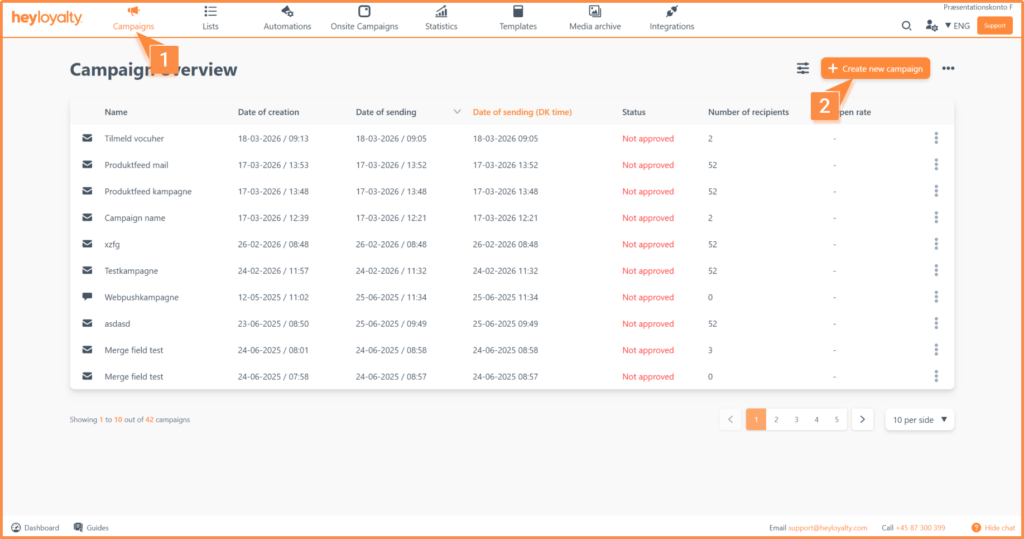
To set up a campaign with a voucher, click Campaigns → Create new campaign.
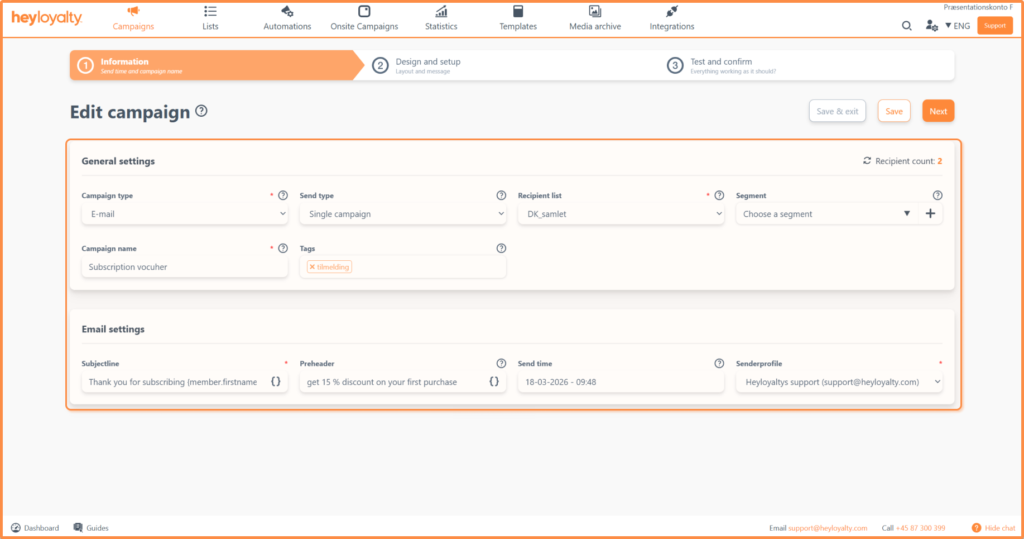
Fill in the information and click Next.
Design your email.
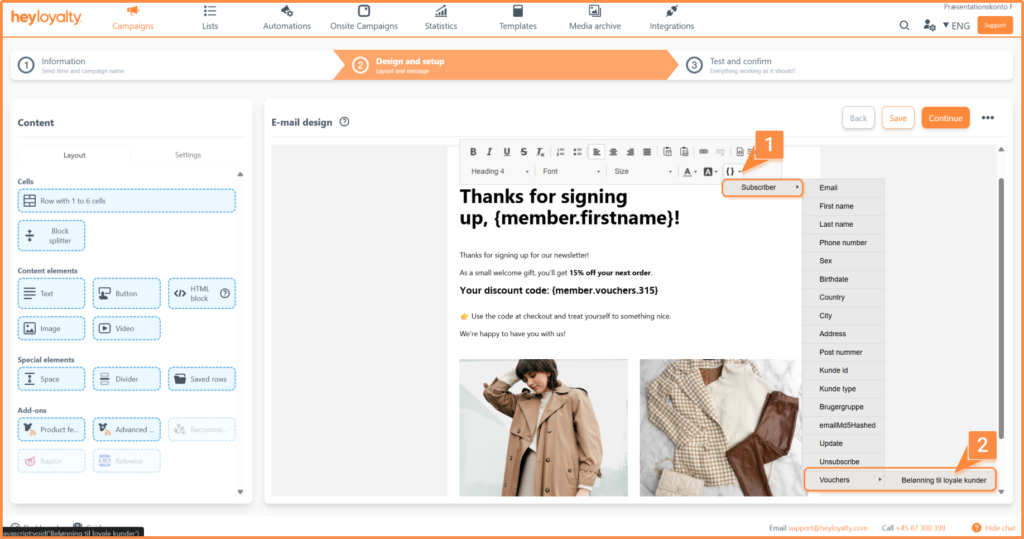
To insert the unique vouchers, place them in a text block. Click { } → Member → Vouchers → select the voucher group you want to use.
You will now see a merge field in your email.
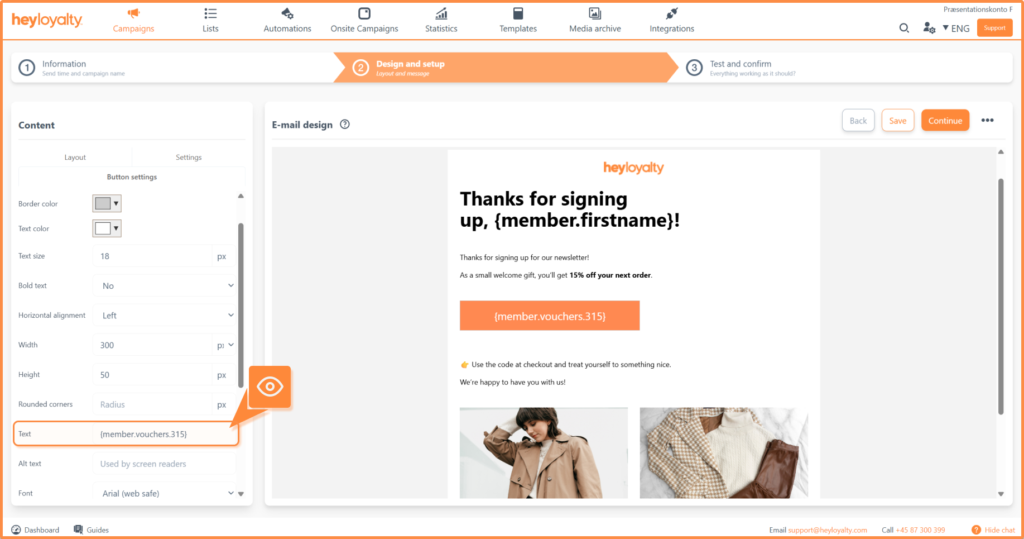
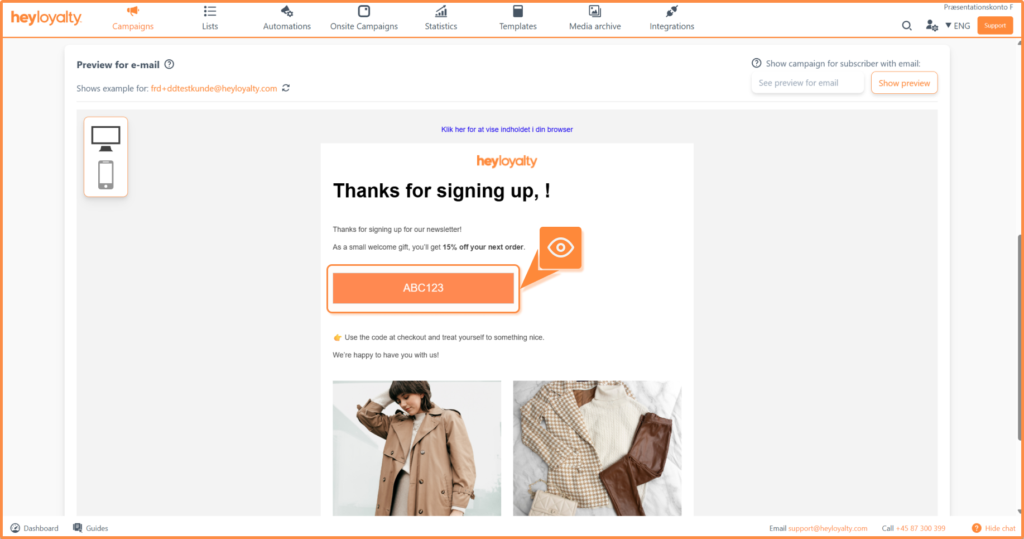
Tip: If you’d like the voucher to appear on a button instead of as part of a text block, copy the merge field and paste it as text on a button. Remember to put a link on the button. See the example below.
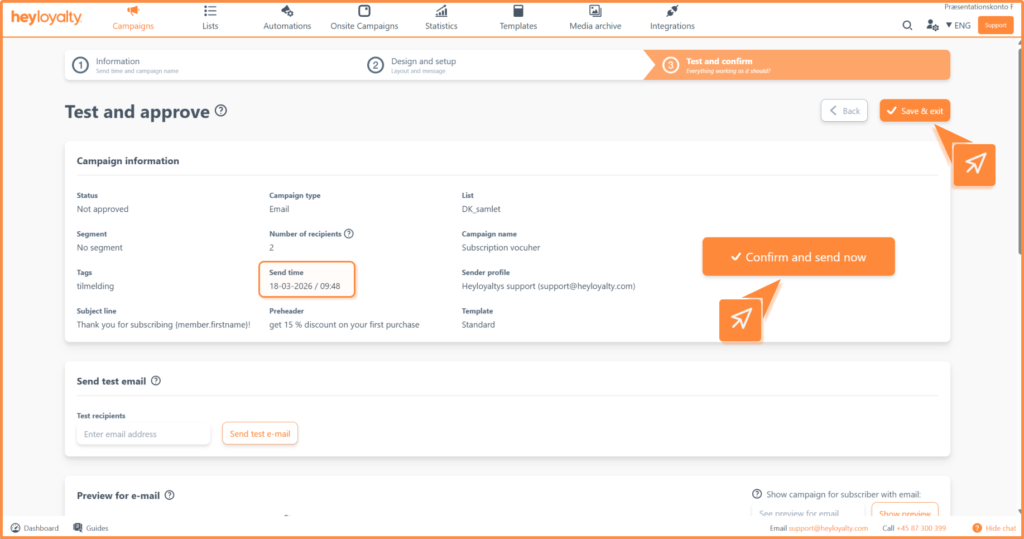
When you proceed to Step 3 – Test and confirm, this voucher will ALWAYS be shown as ABC123. The same applies if you send this email as a test email to yourself or a colleague.
Heyloyalty shows the discount code as ABC123 so that it does not use up one of the real vouchers you have set up on your site, which have a real value.
If everything looks the way you want, click Approve Campaign or Confirm and send now (depending on the send time you selected earlier in the setup).
Alternatively, click Save and exit and complete the campaign or send it manually at a later date.
If you need information or help that you cannot find here on the guide site, you are always welcome to contact our support! support@heyloyalty.com
Didn't find the answer?
Write to our support team and we'll help you further.