
In this guide, you will learn how to create a customer club with the earning type Points (fixed) in Customer Loyalty Center.
This type makes it possible to give customers a fixed percentage discount when they meet a specific condition – for example, when they make a purchase above a given amount. It is a simple way to reward your customers without using multiple tiers.
The wizard walks you through the setup so you can get your customer club up and running quickly.
Step 1: Create the integration
Go to Integration → List integration. Then find Customer Loyalty Center and click Set up integration.
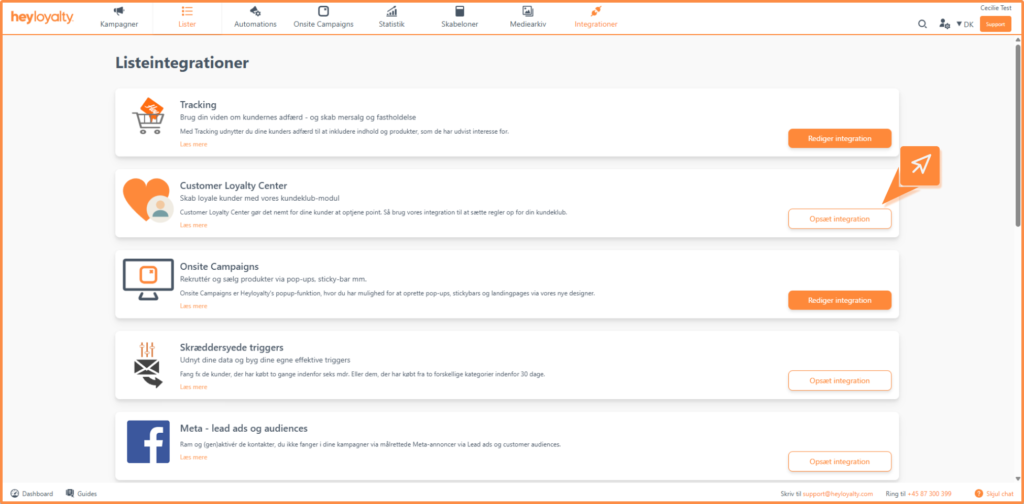
Then click Create Customer Loyalty Center.
The first time you set it up, you must accept the terms and conditions. You do this with a one-time code that is sent to your email.
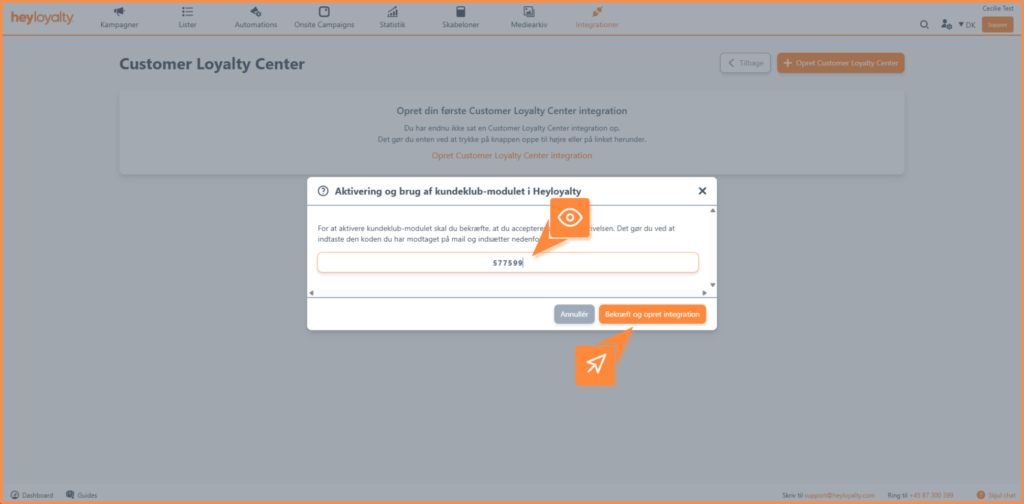
Step 2: Set up the integration
Once the integration is created, you need to set up the following:
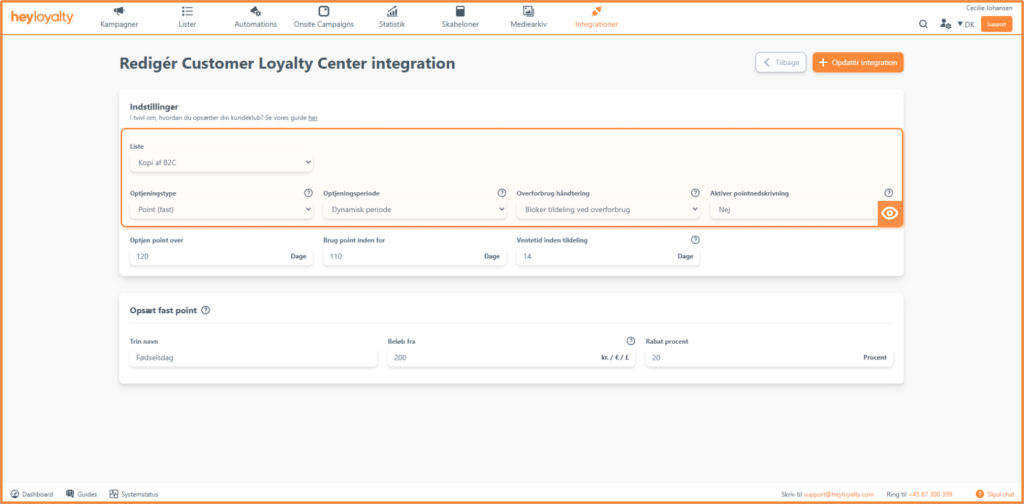
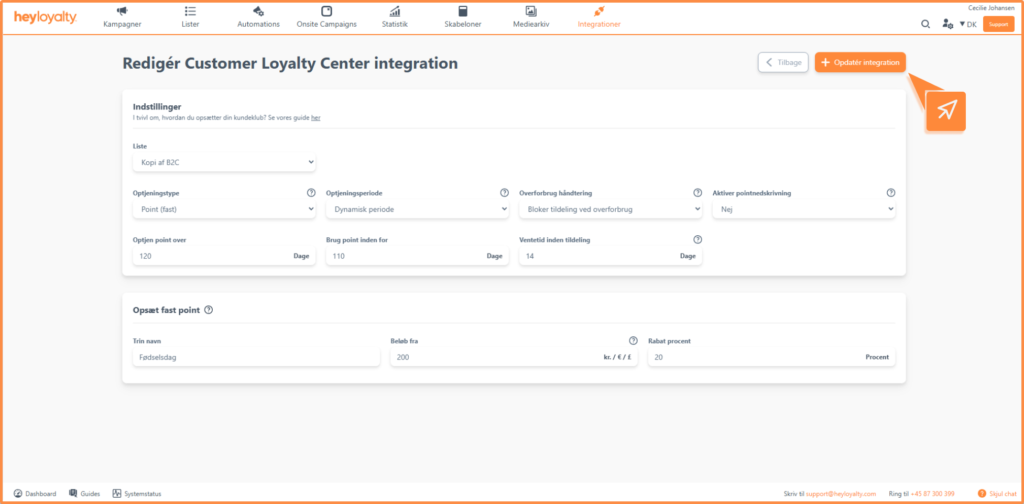
- List: Select the list that the customer club should be linked to. Only contacts on this list will earn points.
- Earning type: Select Point (fixed).
- Earning period: You can choose between:
- Fixed period: The period is fixed, with start and end dates for both earning and using points. The system automatically updates the year when the period expires. Read more about the recommendation here.
- Dynamic period: The period is calculated individually for each customer based on their activity. Read more about the settings here.
- Overspending handling: Select block allocation on overspending if you do not want to award points to members who have used more points than they have available.
Select settle first if new points should be used to offset the overspending, so that only the remainder becomes available as points. - Enable point write-down: Here, you can choose between the following options:
- No: Points can ONLY be written down by the customer using our “removePoints” function via the API removePoints endpoint.
- Yes: Points can be written down if they are included in the tracking script or via the CreateOrder endpoint.
Step 3: Set up your rule
In this part, you define the rule that determines when customers earn points.
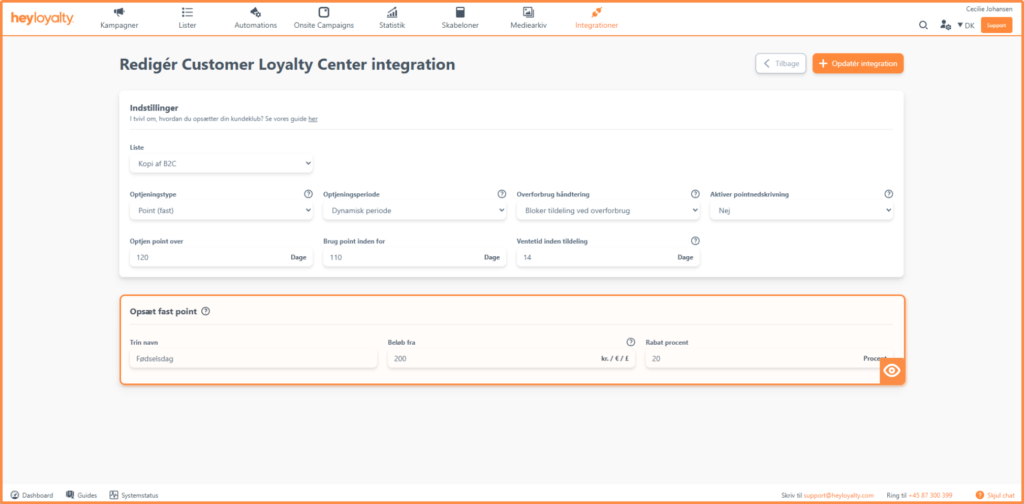
You need to fill in the following fields:
- Points name: The name of the rule – e.g., “Birthday points” or “Purchase over $X.”
- Amount from: The minimum amount the customer must spend to earn points.
- Points earned: Here, you enter the percentage discount the customer should receive for meeting the rule.
Example: Points (fixed)
- Point name: Birthday Points
- Amount from: 200 DKK
- Points earned: 10 percent
In this example, customers earn a 10 percent discount every time they spend more than 200 DKK.
Once you have set up your rule, click Save integration.
Edit your setup
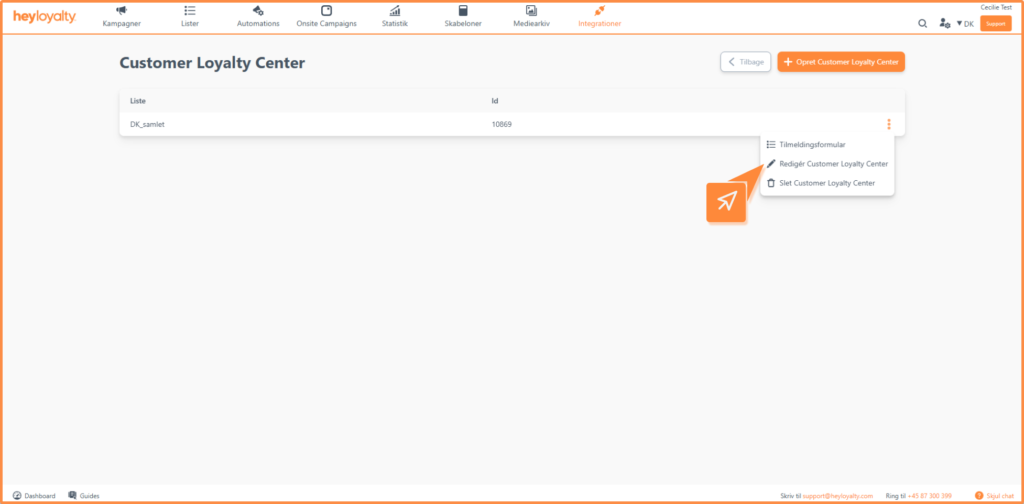
You can change your setup at any time. Click the three dots next to the integration and select Edit Customer Loyalty Center.
From here you can also delete the integration if needed.
Get started with your fixed points
You are now ready to use fixed points in your customer club. This setup is ideal if you want to set up a simple rule in your customer club.
To get the most out of your solution, you can use the percentage discount actively in your campaigns and automated flows – for example, by informing customers about their discount or motivating them to shop again.

If you need information or help that you cannot find here on the guide site, you are always welcome to contact our support!
support@heyloyalty.com