
If you’re not satisfied with the overall look of your campaign and would therefore like to change the template, that’s no problem (of course, you’ll need to have multiple templates). If you’d like to change your template, click (•••) in the editor.
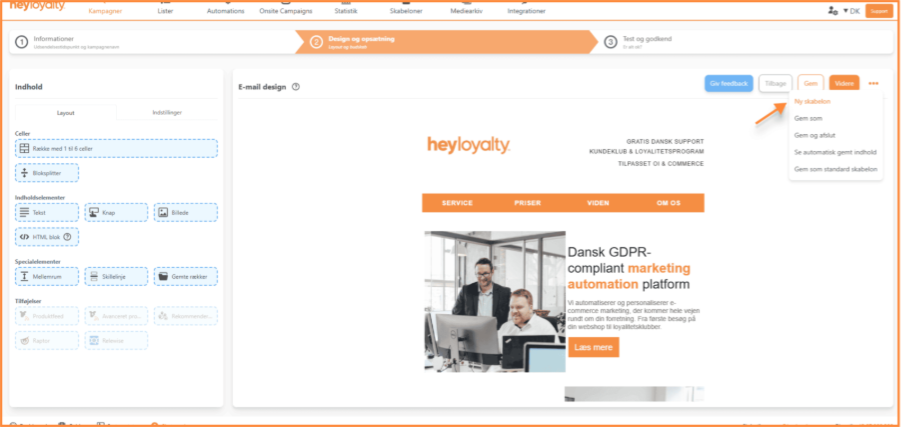
You will be taken back to the screen where you selected the template. Here, you can choose a new template for your campaign.
Select the new template here:
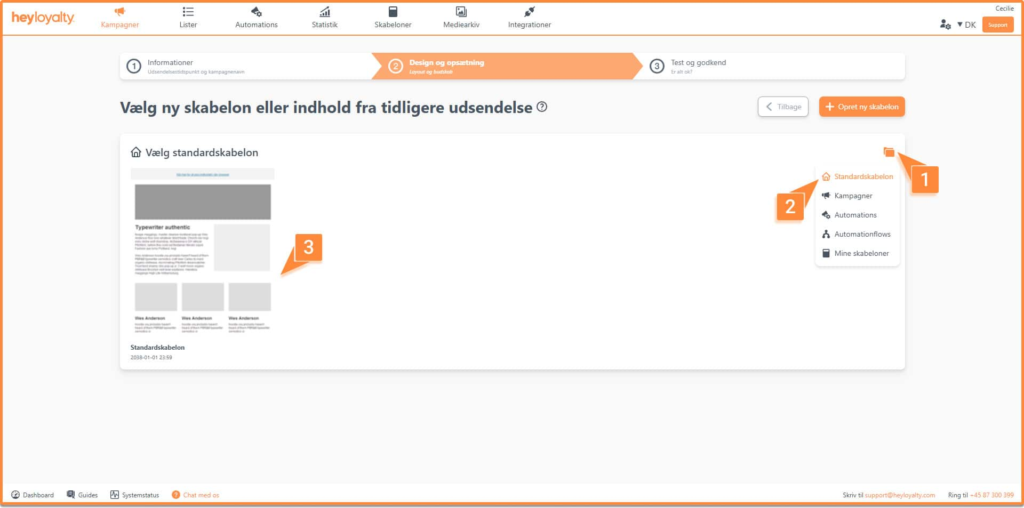
Once you’ve selected a template, you’ll return to Step 2, where you can add content to your newsletter.

If you need information or help that you cannot find here on the guide site, you are always welcome to contact our support!
support@heyloyalty.com