
Setting up the Webpush integration
Set up Webpush by clicking Integrations → List Integrations → Webpush → Setup Integration → Create new Webpush.
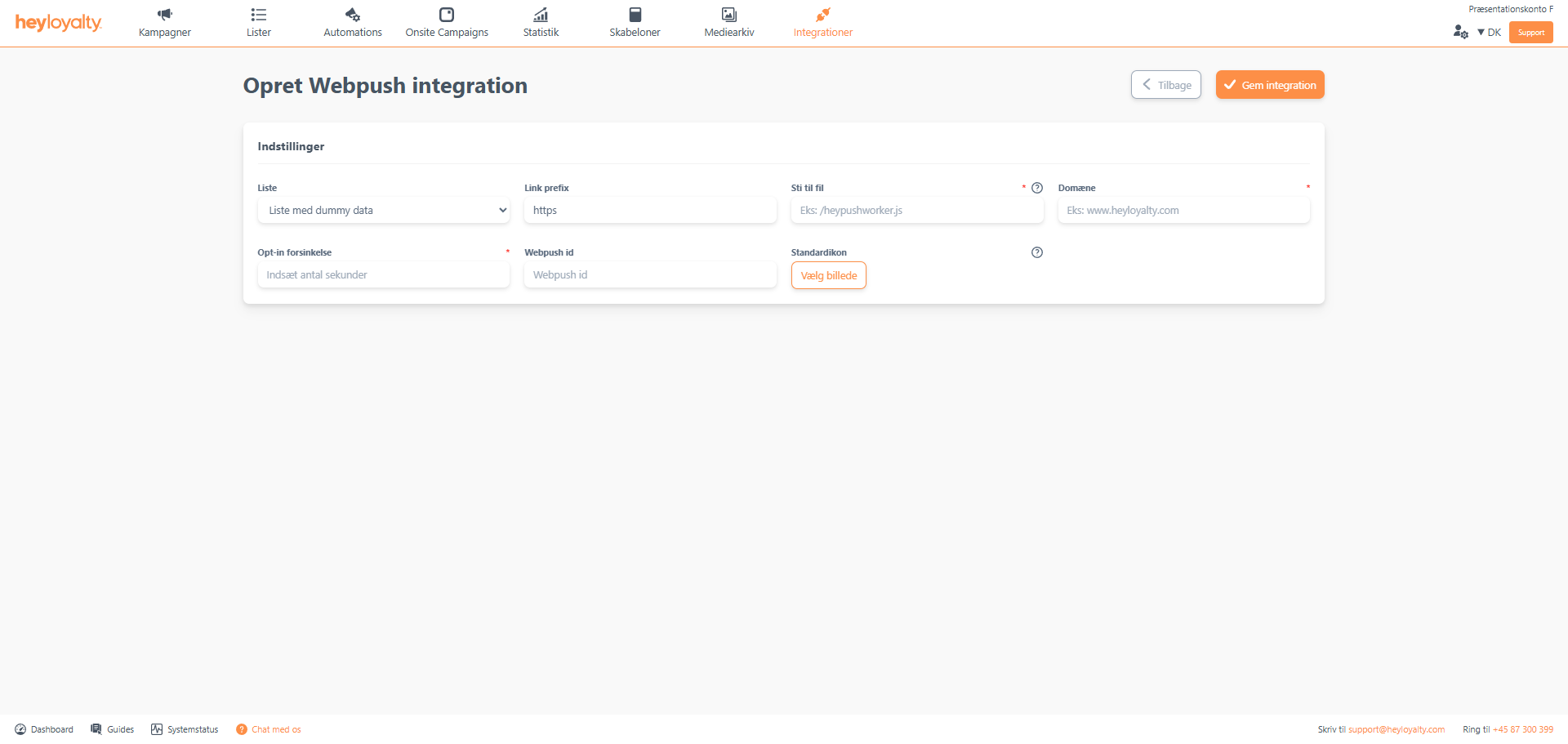
Fill in the fields. Make sure to fill in File path with an exact name. Heyloyalty strongly recommends that you enter /webpushworker.js here. Opt-in delay is typically 5 seconds. It defines how many seconds a user must be on your website before the option to sign up for web push notifications on your website appears.
Under Default icon, many choose to add their company logo. This way, your logo will be included by default in the webpush messages you send. However, you can change this icon at any time when setting up the webpush campaign.
Finish by clicking Save integration.
Implement Webpush (worker file and script)
Integrations → List Integrations → Webpush → Edit Integration → ⁝ → Installation wizard → Open worker file. When you click Open worker file, a new window opens. In this window, right-click and select Save as.
Save the file to your desktop and name it exactly: webpushworker. Before you click Save, make sure that the File Type is set to JavaScript File.
Now place this file in the root of your website. You can use a program like Filezilla for this.
Go back to the window with the installation guide. If you have closed it, you can find it here: Integrations → List integrations → Web push → Edit integration → ⁝ → Installation guide.
Select and copy the script in the light gray box and paste it into all the pages on your website where visitors should be able to sign up for webpush notifications.

If you need information or help that you cannot find here on the guide site, you are always welcome to contact our support!
support@heyloyalty.com